Table of Contents
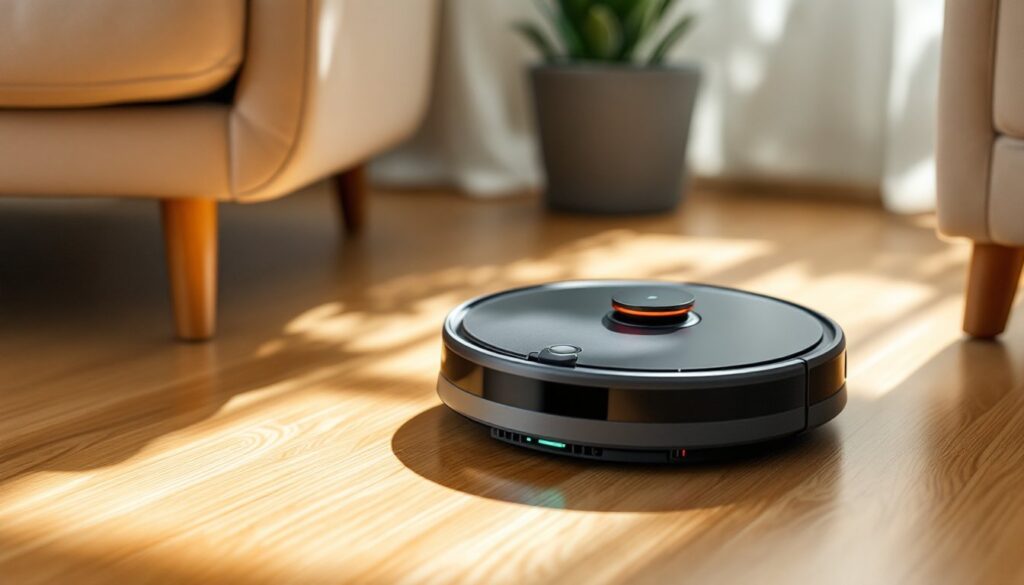
ToggleAnyone who owns a robotic vacuum has faced that moment of uncertainty: Is this thing actually charging, or is it just sitting there pretending? Unlike traditional vacuums that plug in and go, Roombas rely on docking stations and indicator lights that can feel cryptic if you’re not familiar with the system. Whether you’ve just unboxed your first Roomba or you’re troubleshooting a unit that’s acting stubborn, understanding the charging process is essential to keeping your floors clean and your vacuum running efficiently. This guide breaks down exactly what to look for, how to interpret those blinking lights, and what to do when things don’t go as planned.
Key Takeaways
- A pulsing amber or white LED light indicates your Roomba is actively charging, while a solid green or white light means the battery is fully charged and ready to use.
- Dirty charging contacts are a common culprit preventing your Roomba from charging—clean both the unit and dock contacts with a dry cloth every few weeks to ensure proper electrical connection.
- Proper dock placement against a wall on a level surface with at least 1.5 feet of side clearance and 4 feet of front clearance allows your Roomba to dock and charge automatically.
- If your Roomba won’t charge, try a hard reset by holding the CLEAN button for 10–20 seconds, verify the dock power adapter is plugged in, and check for error codes in the iRobot Home app.
- Most Roombas take 2 to 3 hours to fully charge, but deeply depleted batteries may take longer and display a slow pulsing red light during the recovery period.
- Use the iRobot Home app to monitor real-time battery percentage, estimated charge time, and troubleshoot charging errors more effectively than LED indicators alone.
Understanding Roomba Charging Indicators and Lights
The primary way to confirm your Roomba is charging is through the LED indicator lights located on or near the power button. These lights communicate the charging status, battery level, and any errors the unit might be experiencing.
When a Roomba is properly docked and charging, you’ll typically see a pulsing amber or white light (depending on the model). This pulsing pattern indicates active charging. Once the battery reaches full capacity, the light changes to a solid green (on older models) or solid white (on newer i, j, and s series models). If your Roomba is resting on the dock but not charging, the light may be off entirely, or you might see an error pattern.
Different Roomba series use slightly different indicator schemes, but the core logic remains consistent: pulsing means charging, solid means fully charged, and rapid blinking or red lights signal a problem. If you’re unsure which series you own, check the underside of the unit or the original packaging.
What the Different Light Patterns Mean
Here’s a breakdown of common light patterns across Roomba models:
- Pulsing amber or white: Battery is currently charging. This is the pattern you want to see when your Roomba is docked.
- Solid green or white: Battery is fully charged and ready for the next cleaning cycle.
- Slow pulsing red: Battery is very low or critically depleted. The Roomba may need several hours to recover.
- Rapid red flashing: Indicates a charging error, dirty charging contacts, or a battery fault. Remove the Roomba from the dock and inspect the contacts.
- No light at all: Either the Roomba is powered off, the dock isn’t receiving power, or the charging contacts aren’t making proper connection.
If you own a newer model with a display panel (like the s9+ or j7+), you’ll see on-screen battery percentage and charging status plus to the LED indicators. Older 600 and 800 series models rely entirely on the button light and audio cues.
How to Properly Place Your Roomba on the Charging Dock
Proper docking is half the battle. A Roomba won’t charge if the metal charging contacts on the underside of the unit don’t align with the corresponding pins on the Home Base.
To manually dock your Roomba, position it so the charging contacts on the bottom of the vacuum line up with the two metal strips on the dock. You should feel a slight magnetic pull as it settles into place. The LED light should pulse within a few seconds if everything is aligned correctly.
Make sure the dock itself is positioned against a wall on a hard, level surface, not on carpet or rugs. The dock needs at least 1.5 feet of clearance on each side and 4 feet of clearance in front to allow the Roomba to approach and dock automatically. If the dock is in a tight corner or surrounded by furniture, the Roomba may struggle to find it or align properly.
Confirm the power adapter is fully plugged into both the wall outlet and the back of the dock. Some models have a small green LED on the dock itself that lights up when it’s receiving power. If that light is off, check your outlet and power cord.
Wipe down the charging contacts on both the Roomba and the dock every few weeks using a clean, dry cloth. Dust, pet hair, and debris can insulate the contacts and prevent proper charging, even when the unit appears to be docked correctly.
Troubleshooting Common Roomba Charging Issues
If your Roomba isn’t charging even though being on the dock, start by ruling out the most common culprits: dirty contacts, a faulty power supply, or a battery that’s reached the end of its lifespan.
First, inspect the charging contacts on both the Roomba and the Home Base. Use a dry microfiber cloth or a pencil eraser to gently clean any oxidation or buildup. Even a thin layer of grime can prevent electrical contact. Don’t use water or cleaning solutions on the contacts.
Next, check the power adapter. Unplug it from the wall and the dock, then plug it back in firmly. If possible, test the outlet with another device to confirm it’s working. Some Roombas use a two-piece power cord: make sure both sections are connected securely.
If the Roomba still won’t charge, try a hard reset. Press and hold the CLEAN button for 10 to 20 seconds until the unit plays a tone or the light ring resets. This clears minor software glitches that can interfere with charging.
Battery degradation is another factor. Roomba batteries typically last 1 to 2 years depending on usage frequency. If your unit is older and no longer holds a charge, the battery may need replacement. iRobot sells OEM replacement batteries, and third-party options are available, though quality varies.
When Your Roomba Won’t Charge: Quick Fixes
Here’s a checklist to run through when charging fails:
- Clean the charging contacts on both the Roomba and dock with a dry cloth.
- Verify the dock is plugged in and receiving power (check for a green LED on the dock).
- Reposition the Roomba manually on the dock to ensure proper alignment.
- Inspect the power adapter for damage or loose connections.
- Perform a hard reset by holding the CLEAN button for 10–20 seconds.
- Test the battery by removing and reinserting it, ensuring it clicks into place.
- Check for error codes on the app or LED patterns that indicate specific faults.
If none of these steps resolve the issue, the problem may be internal (faulty charging circuit, damaged dock pins, or a dead battery). At that point, contacting iRobot support or a certified repair service is the next step. Warranty coverage varies by model and purchase date, so have your receipt handy.
Using the Roomba App to Check Charging Status
If your Roomba is connected to the iRobot Home app (available for iOS and Android), you have a more detailed view of charging status than the LED lights alone provide. The app displays real-time battery percentage, estimated time to full charge, and historical cleaning data.
Open the app and select your Roomba from the device list. The main screen shows the current battery level as a percentage and whether the unit is actively charging. Many recent smart home devices integrate similar app-based monitoring for easier troubleshooting and maintenance tracking.
The app also logs charging errors and maintenance alerts. If your Roomba encounters a problem during charging, such as a temperature fault, contact issue, or dock misalignment, the app will display a notification with a description and suggested fix. This is particularly useful for diagnosing intermittent issues that don’t trigger a persistent LED error.
You can also set cleaning schedules through the app, which automatically returns the Roomba to the dock after each job. If the unit isn’t returning to the dock as expected, the app’s activity log can help pinpoint whether the issue is navigation-related, battery-related, or dock-related.
Not all Roombas support app connectivity. The 600 series and some 800 series models rely entirely on physical indicators. If your model supports Wi-Fi but isn’t connecting, confirm the Home Base is within range of your router and that the Roomba’s firmware is up to date. Firmware updates are pushed through the app and can resolve charging bugs introduced in earlier versions.
How Long Does It Take for a Roomba to Fully Charge?
A fully depleted Roomba typically takes 2 to 3 hours to reach a full charge, though this varies by model and battery condition. Newer models with lithium-ion batteries (i, j, and s series) charge faster than older nickel-metal hydride (NiMH) batteries found in 600 and 800 series units.
If the battery is deeply discharged, meaning the Roomba sat unused for weeks or completely drained during a large cleaning job, the initial charging phase may take longer. The unit may display a slow pulsing red light during this recovery period. According to device testing standards, robotic vacuums with advanced battery management systems often trickle-charge the first 10–15% to protect cell longevity.
Once the Roomba reaches about 80% charge, it can resume cleaning if manually started. But, letting it charge to 100% before the next scheduled run ensures maximum cleaning coverage, especially in larger homes.
Charging time can increase if the battery is aging or if the ambient temperature is outside the optimal range. Roomba batteries perform best between 50°F and 85°F. Charging in a cold garage or hot sunroom can slow the process and reduce overall battery lifespan.
If your Roomba consistently takes longer than 4 hours to charge or never reaches 100%, the battery is likely nearing the end of its usable life. Replacement batteries are widely available, and installation is straightforward, no tools required on most models. Reviews from sources like Good Housekeeping often highlight battery performance and replacement ease when evaluating robotic vacuum models.
Keep the Roomba docked between cleanings. Lithium-ion batteries don’t suffer from memory effect, so leaving the unit on the charger won’t degrade capacity. In fact, it ensures the Roomba is always ready for scheduled or on-demand cleaning.